
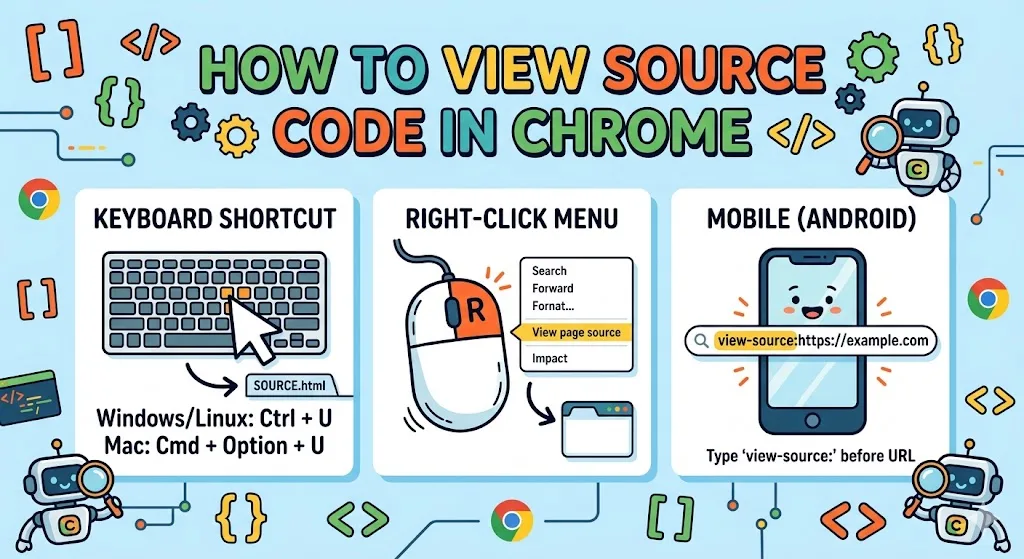
Viewing a webpage’s HTML in Chrome takes under five seconds. Ctrl+U opens the raw HTML source. Chrome DevTools shows the live DOM — including any changes JavaScript made after the page loaded. Neither method exposes server-side code like PHP; that runs on the server before the page reaches your browser.
How to View Source Code in Chrome on Desktop
Three methods work on desktop. All three show the same HTML. The difference is how you get there.
Keyboard Shortcut
Press Ctrl+U on Windows or Linux. On Mac, use Cmd+Option+U. A new tab opens with the raw HTML source of the current page. No menus, no extra clicks.
Right-Click Menu
Right-click on a blank area of the page — not on an image or a link. Select “View page source” from the context menu. The same HTML tab opens. If the right-click option doesn’t appear, you likely clicked on an element rather than the background.
Chrome Menu
Click the three-dot icon in Chrome’s top-right corner. Navigate to More tools, then select View source. This produces the same output as the keyboard shortcut. It’s slower, but useful if you’re already in the menu for another reason.
How to View Source Code in Chrome Using Developer Tools
The three methods above show what the server sent — static HTML. Chrome DevTools shows the rendered DOM, which is the HTML as it exists after JavaScript has run. On pages that load content dynamically, these two can look very different.
Press F12 or Ctrl+Shift+I on Windows to open DevTools. On Mac, use Cmd+Option+I. Right-clicking any element on the page and selecting “Inspect” opens the panel with that element already highlighted in the Elements tab.
The Elements tab displays the full DOM structure. The Styles panel alongside it shows every CSS rule applying to whichever element you click. Double-clicking any HTML tag in the panel lets you edit it temporarily — the change shows immediately and disappears when you refresh.
For Chromebook users, the workflow is identical. The Chromebook inspect element guide covers the same steps with Chrome OS-specific context.
DevTools Keyboard Shortcuts at a Glance
| Action | Windows / Linux | Mac |
|---|---|---|
| Open DevTools | F12 or Ctrl+Shift+I |
Cmd+Option+I |
| Inspect element | Ctrl+Shift+C |
Cmd+Shift+C |
| View raw source | Ctrl+U |
Cmd+Option+U |
| Search all files | Ctrl+Shift+F |
Cmd+Option+F |
How to View Source Code in Chrome on Android
Mobile Chrome doesn’t have a right-click menu or a visible source option, but the address bar method works reliably.
- Open Chrome on your Android device and go to the page you want to inspect.
- Tap the address bar and move the cursor to the very beginning of the URL.
- Type
view-source:directly before the URL — for example:view-source:https://www.example.com - Tap Go or press Enter.
The page reloads as plain-text HTML. Some pages block this through server configuration, in which case the page loads normally or returns an error. If that happens, a third-party online source viewer is the practical fallback.
View Source Code in Chrome on iPhone and iPad
Chrome on iOS doesn’t support the view-source: prefix. Safari is the more capable option here. After enabling the Develop menu in Safari’s Advanced Settings, Cmd+Option+U opens source code the same way Chrome does on desktop. The View Source app from the iOS App Store handles this without the additional setup. For a full DevTools-equivalent experience on iPhone, connecting to a Mac via USB and using Safari’s Develop menu gives access to a complete panel. The iOS inspect element walkthrough covers that process step by step.
How to View Page Source Across Different Browsers
Ctrl+U works in Chrome, Firefox, Edge, and Opera on desktop. DevTools opens with F12 or Ctrl+Shift+I across all four. Safari requires enabling developer features first. Microsoft ended Internet Explorer support in June 2022; Edge is the current replacement and supports identical shortcuts. Knowing how to access the keyboard shortcuts viewer in ChromeOS makes it faster to look up these combinations without leaving the browser.
Source Viewing Support — Desktop Browsers
Platform availability varies between desktop, Android, and iOS. The grid below shows which methods apply on each:
Ctrl+U
DevTools
Right-click
view-source:
view-source:
DevTools
Right-click
Online tools
view-source:
DevTools
Safari (setup)
App required
How to Close the Source View or DevTools
How you close it depends on how you opened it. If you used Ctrl+U or the right-click menu, close the new tab Chrome opened. If you used DevTools with F12 or Ctrl+Shift+I, press the same shortcut again. Clicking the X in the DevTools panel corner works too. Browsing faster with keyboard-only navigation makes closing and switching between panels much quicker — the keyboard-only browsing techniques for Chromebook article shows how to handle these workflows without reaching for the mouse.
FAQs
What is the shortcut to view source code in Chrome?
Press Ctrl+U on Windows or Linux. On Mac, use Cmd+Option+U. Both open a new tab showing the raw HTML source of the current page instantly.
What is the difference between View Page Source and DevTools in Chrome?
View Page Source shows the original HTML sent by the server. DevTools shows the rendered DOM — HTML after JavaScript has modified it, which often differs from the original source.
Can you view source code in Chrome on Android?
Yes. Tap the address bar, move the cursor to the start of the URL, type view-source: before it, and tap Go. The page loads as plain-text HTML source code.
Why does view-source not work in Chrome on iPhone?
Mobile Chrome on iOS doesn’t support the view-source: prefix. Use Safari’s built-in developer tools after enabling them in Advanced Settings, or install the View Source app from the App Store.
Does viewing source code expose PHP or server-side scripts?
No. PHP and other server-side code runs on the server before delivery. Only the resulting HTML, CSS, and JavaScript appear in the source view — never backend logic or database queries.