
Chrome stores cookies and cached files to speed things up and keep you signed in across visits. Over time, stale data causes pages to load broken layouts, show outdated prices, or behave oddly after a site update. Clearing this data resets the browser back to a clean state. The steps differ slightly on desktop, Android, and iPhone, but each takes under a minute.
How to Clear Cache in Chrome on a Computer
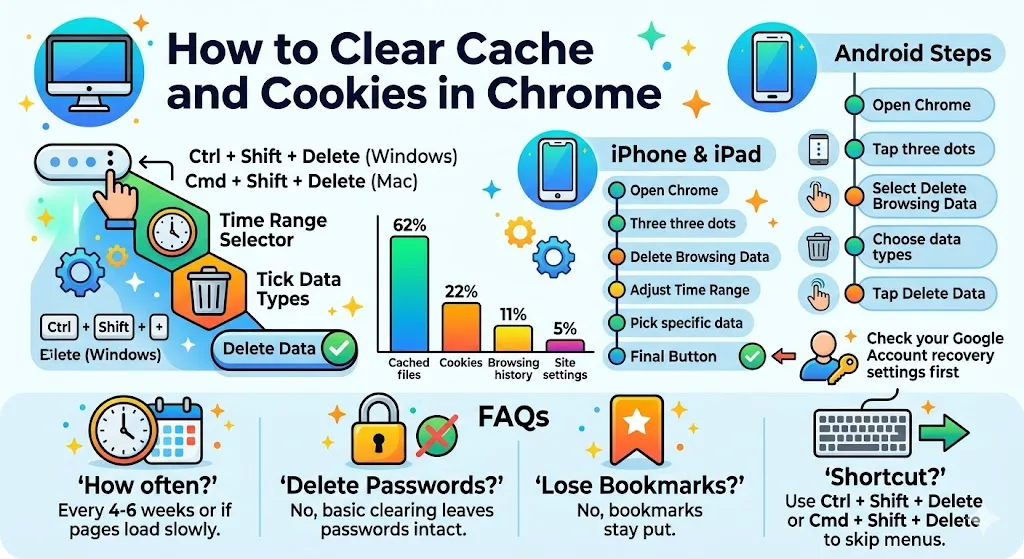
Open Chrome, click the three-dot menu at the top-right, then choose Delete browsing data.
A dialog opens with a Time range selector. Pick Last hour, Last 24 hours, Last 7 days, or All time. Tick the data types you want gone, then click Delete data.
There is a faster route. Type Delete browsing data into the address bar and tap the Action chip that pops up. Chrome jumps straight to the same dialog.
Keyboard shortcut works too: Ctrl + Shift + Delete on Windows or Cmd + Shift + Delete on Mac opens the dialog directly.
A Note About Cookies and Google Sign-in
If you delete cookies while signed into Chrome, Google cookies that keep you logged in refresh automatically so the browser keeps working. To remove Google’s cookies completely, sign out of Chrome before clearing. For broader privacy tweaks on Chrome OS, this Chromebook privacy settings walkthrough covers how Chrome handles stored data.
Clear Cache on Android
Open Chrome on your phone or tablet. Tap the three-dot menu beside the address bar, then tap Delete browsing data.
| Option | What it does |
|---|---|
| Choose a duration | Sets the window for what gets deleted. Default is 15 minutes. |
| Delete data | Removes browsing history and saved data for the selected period. |
| More options | Lets you pick specific data types before confirming. |
Pick what you want removed, then tap Delete data. Being signed into Chrome does not sign you out of Google sites like YouTube or Gmail after this.
How to Clear Cache on iPhone or iPad
Before doing this on iOS, check that your Google Account recovery phone and email are current. Clearing cookies on iPhone can sign you out, and you want a way back in without friction. If you get stuck on sign-in after clearing, this guide on clearing Chrome data on iPhone covers recovery too.
Open Chrome on the device. Tap the three-dot menu, then tap Delete Browsing Data.
| Setting | Detail |
|---|---|
| Time Range | Default is 15 minutes. Change it to match how far back you need to clear. |
| Browsing Data | Tap to pick specific data types. |
| Confirm | Appears after choosing data types. |
| Delete Browsing Data | Final button to run the deletion. |
You can also reach the screen through More → History → Delete Browsing Data. The Action chip trick works on iOS too: type Delete browsing data in the address bar and tap the chip.
What Happens After You Clear the Cache
A few things change straight away:
- Most sites sign you out, so you log back in with your passwords
- Preferences stored in cookies reset to defaults
- First visits load slightly slower while assets download fresh
- Chrome sync keeps your Google sign-in consistent across devices on desktop
What Cookies and Cache Actually Store
Cookies are small files a site drops onto your device. They hold things like your login token, language choice, and items sitting in a cart.
The cache saves static pieces of pages: images, fonts, scripts, layout files. Instead of downloading them on every visit, the browser pulls them from disk.
Both are useful, but both pile up. A cleanup every few weeks keeps Chrome responsive. If the problem is a single misbehaving site, the Chrome DNS cache flush via chrome://net-internals often fixes it without touching your main cache. For site-loading errors that the cache does not solve, the 502 Bad Gateway fix guide and the webpage not available troubleshooting steps cover the next layer of checks.
For browsers beyond Chrome, Safari and Firefox each have their own data controls. Users running multiple browsers on Chrome OS can look at this roundup of browsers for Chromebook for setup details.
FAQs
How often should I clear Chrome cache?
Every four to six weeks is enough for most users. Clear it sooner if pages look broken, load outdated content, or if Chrome feels slow. After major site updates, a targeted clear fixes display bugs quickly.
Does clearing cache delete saved passwords?
No. Passwords sit in a separate category called Passwords or Autofill. The Delete browsing data dialog only touches passwords if you tick that specific box. Basic cache and cookie clearing leaves logins intact.
Will I lose bookmarks when I clear cache in Chrome?
Bookmarks stay put. They live outside the cache and cookie system. Even an All time clear with every box checked keeps your bookmarks, reading list, and extensions installed on the browser.
What is the shortcut to clear cache in Chrome?
Press Ctrl + Shift + Delete on Windows, Linux, or Chrome OS. On Mac, press Cmd + Shift + Delete. Chrome opens the Delete browsing data dialog directly so you skip the menu.
Does clearing cache in Chrome log me out of Google?
On desktop with Chrome sync active, Google cookies refresh and you stay signed in. On Android, Google sites like Gmail and YouTube keep you logged in. On iPhone, you may get signed out of Google services.