
A clip that plays perfectly on the phone that recorded it can turn into a black screen, a silent picture or an “unsupported format” error once it reaches a laptop, a smart TV or a colleague’s inbox.
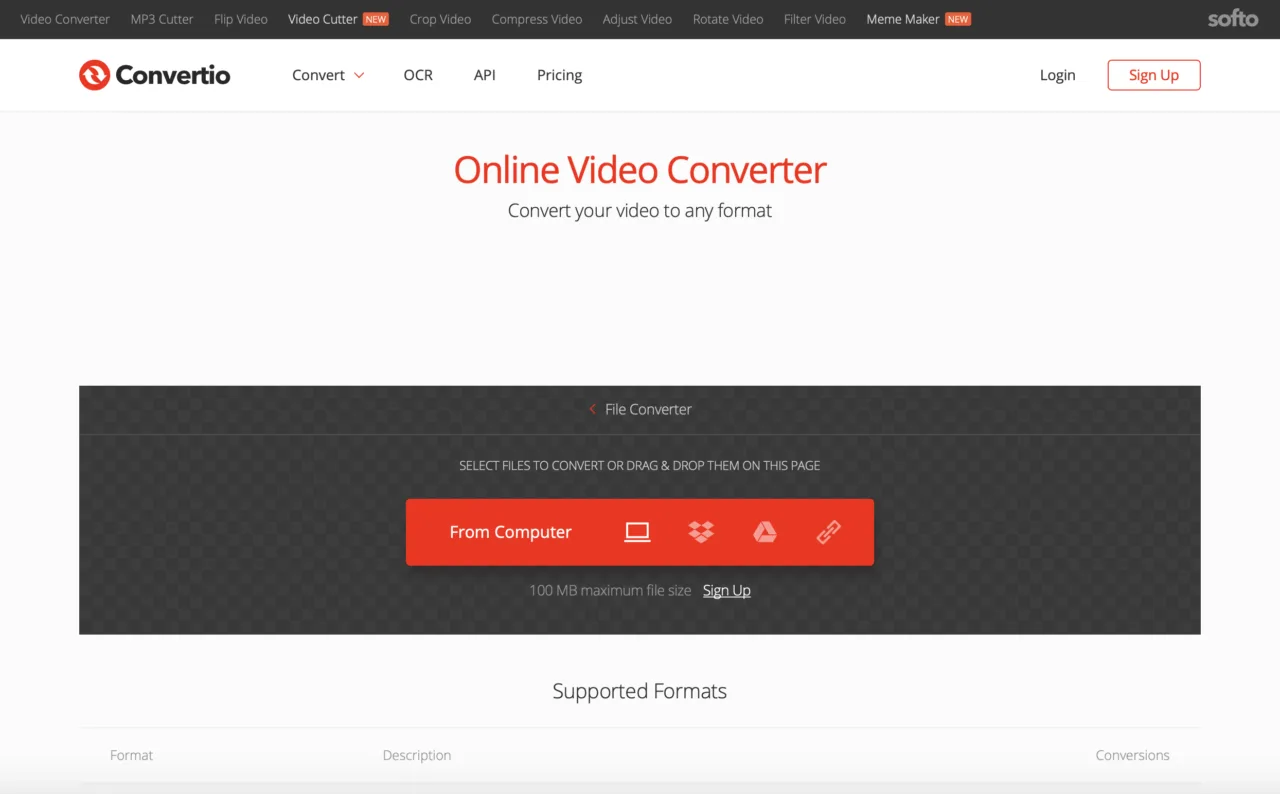
The online video converter from Convertio re-encodes such a file into one of more than 37 video formats, including MP4, MKV, WEBM and AVI, directly in the browser and without any software on your computer.
In most cases nothing is wrong with the recording itself. The picture and sound are intact, and the device just can’t read the package they arrived in.
Container and codec: two reasons a video fails
Every video file has two layers. The outer one is the container, the part named by the extension: .mp4, .mov, .mkv. Inside it sit separately compressed streams of picture and sound, often with subtitles and metadata alongside. Wikipedia’s article on the video file format describes this structure: a container such as Matroska carries video in one coding format (for example VP9) and audio in another (for example Opus).
That split explains most playback errors. A player can open an MP4 container without complaint and still choke on the H.265 stream inside it because the matching decoder is missing. It also explains why renaming clip.mov to clip.mp4 is a gamble. You change the label on the box, not its contents.
If the file opens but shows a black frame, or plays video with no sound, the codec is usually to blame. If the player refuses to open it at all, suspect the container first.
The formats you’ll run into
Containers differ in more than popularity. Some older ones can’t handle features modern encoders rely on: as the Wikipedia entry on the container format points out, AVI has no native support for B-frames, variable-bitrate audio or variable frame rate video. The table sums up the formats that most often end up in a converter.
| Format | Origin | Where it usually comes from | Typical trouble |
|---|---|---|---|
| MP4 | MPEG-4 Part 14, an ISO standard | Phones, cameras, web uploads | Rarely a problem; the safest output choice |
| MOV | Apple QuickTime | iPhone and Mac recordings | HEVC video inside may not play on Windows or older TVs |
| MKV | Matroska, first released in 2002 | Films with several audio and subtitle tracks | Patchy support in browsers, some editors and Apple apps |
| WEBM | Google’s open web format | Browser-based screen recorders, web video | Older editing software won’t import it |
| AVI | Microsoft, early 1990s | Old cameras, archives of downloaded video | Large files, weak support for modern codec features |
| MTS / M2TS | AVCHD standard | Sony and Panasonic camcorders | Footage split into many files, awkward on phones |
| VOB | DVD-Video | Files copied from DVDs | MPEG-2 video, 4:3 aspect ratio, no phone support |
| WMV | Microsoft, 1999 | Windows-era presentations and recordings | Mac and mobile players often ignore it |
Five files that refuse to cooperate
Format tables are useful, but people rarely search for “VOB container”. They search for the symptom. Here are the cases that come up again and again, with the output and the one setting worth checking.
| What you see | What’s going on | Convert to | Setting to check |
|---|---|---|---|
| An iPhone video shows a black screen on a Windows PC | MOV with HEVC (H.265) video, which Windows plays only after installing an extra codec extension | MP4 | Codec: H.264 |
| A browser screen recording won’t import into a video editor | WEBM file with VP8 or VP9 video | MP4 | Keep original resolution |
| A camcorder card shows a folder full of MTS files | AVCHD stream files meant for the camera’s own software | MP4 | Resolution: original |
| A family DVD needs to play on a phone | VOB files with MPEG-2 video | MP4 | Aspect ratio: 4:3, so the picture isn’t stretched |
| A 4K clip is too heavy to send in a messenger | High bitrate and resolution | MP4 | Resolution: 1080p or 720p |
Nearly all consumer video uses lossy compression, so each re-encode throws away some detail. Convert from the original recording rather than a copy a messenger has already compressed, and avoid chains like MOV to AVI to MP4. One conversion straight to the final format keeps the most detail.
Converting a video on Convertio, step by step
The process on convertio.co takes four actions, and the settings panel stays out of the way unless you open it.
- Open the video converter page and add the file. It can come from your computer or phone, from Google Drive or Dropbox, or from a direct link to the file. Dragging it onto the page works too.
- Choose the output format from the list. To process several clips in one go, add more files; each one can get its own target format.
- Click the gear icon if you need to change anything. For a plain container swap, the defaults are fine.
- Press Convert and wait for the processing to finish, then download the result or send it back to Google Drive or Dropbox.
- Codec, which decides compatibility. H.264 plays on almost anything made in the last decade.
- Quality and bitrate, the main levers for file size.
- Resolution and aspect ratio, useful for shrinking 4K footage or fixing stretched DVD rips.
- Rotate and flip, for clips recorded sideways or mirrored by a front camera.
The converter runs in any modern browser on Windows, macOS and Linux, and in mobile browsers on iPhone and Android, so there’s no app to install. The output carries no watermark, including files converted on the free tier.
Free tier, credits and file size limits
Convertio counts usage in conversion credits, which measure the server time a file needs. According to the pricing page, most photo and document jobs use a single credit, while bigger files and heavier codecs use more, so video tends to consume credits faster than a PDF does. Credits are charged only for conversions that complete successfully.
| Plan level | Max file size | Conversion credits | Simultaneous conversions |
|---|---|---|---|
| Free, no sign-up | 1 GB | 10 per 24 hours | 10 |
| Entry paid plan | 1 GB | 1,000 per month | 50 |
| Mid paid plan | 3 GB | 3,000 per month | 100 |
| Top standard plan | 10 GB | 10,000 per month | Unlimited |
| Custom | 20 GB | Up to 1 million per month | By arrangement |
These figures come from Convertio’s Help Center and pricing page as of September 2026. The limits have been revised in the past, so a quick look at the pricing page before a large batch saves surprises.
What happens to the uploaded file
Sending home videos or client footage to a server is a fair thing to think twice about. Convertio’s stated policy covers the main points:
- Uploaded source files are deleted right after conversion, and converted files are removed after 24 hours.
- Traffic between the browser and the servers travels over SSL with HSTS enabled.
- Output files are tied to the IP address that started the conversion, so only that user can download them.
For material covered by a non-disclosure agreement, medical records or anything your employer forbids uploading, check the internal rules before using any cloud service, this one included.
When a desktop tool is the better choice
A browser converter covers the everyday cases in the tables above. A few situations call for software on your own machine instead:
- Raw footage from cinema or action cameras that runs well past the file size limit of your plan.
- A slow upload connection. At 10 Mbps upstream, sending a 2 GB file takes around 27 minutes before conversion even starts.
- Frame-accurate editing, colour correction or subtitle burn-in, which belong in a video editor.
- Material that must never leave the computer.
Free open-source programs such as HandBrake and FFmpeg handle these cases offline. For the opposite need, recurring conversions built into a website or internal system, Convertio publishes an API and a command-line tool on its developer portal.
Checklist before pressing Convert
- You’re working from the original recording, not a forwarded copy.
- You know where the file will play: a phone, a TV, an editor or a website.
- MP4 with H.264 is selected unless the destination needs something specific.
- The resolution matches the destination; 4K on a messenger is wasted size.
- Old DVD footage keeps its 4:3 aspect ratio.
- The file fits the size limit and credit balance of your plan.
- A copy of the original is kept until you’ve watched the converted version end to end.
Short answers to common questions
Does renaming .mov to .mp4 work?
Sometimes. MP4 was built on Apple’s QuickTime file format, so some players accept a renamed MOV. It fails whenever the codec inside is the actual problem, which is the common case with HEVC iPhone footage.
Can I convert several videos at once?
Yes. Add several files in one session and set a format for each; how many run at the same time depends on the plan.
Will the converted file look worse?
With sensible settings, the difference is hard to spot on a normal screen. Pushing the bitrate down or converting the same clip repeatedly is what makes compression artefacts visible.
How many format pairs are available?
Convertio’s video converter page lists 3,256 different video conversions across its supported formats. Alongside MP4 and MOV, the list covers rarer types such as MXF, RMVB and WTV.