
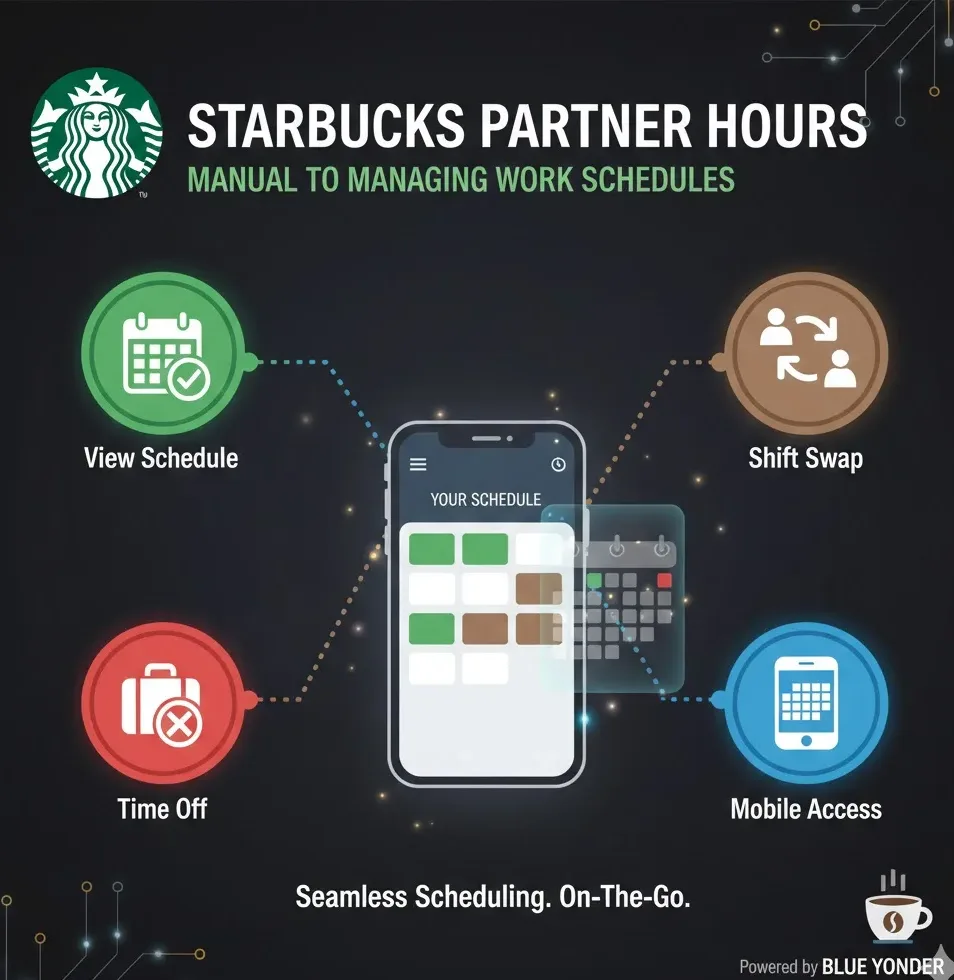
Starbucks Partner Hours operates as the scheduling platform for Starbucks employees worldwide. The system provides shift viewing, time-off requests, schedule exchanges, and availability updates through Blue Yonder technology. Workers access this platform via web portal or mobile application.
How Starbucks Partner Hours Works
The platform connects to Blue Yonder WFMR servers on the backend. Employees monitor shifts and submit time-off requests through this interface. Managers process all requests through the same system.
New employees receive a Global Username during onboarding. This credential grants access to Partner Central and scheduling tools. Once activated and linked to your store location, your shift calendar becomes visible.
Accessing Your Starbucks Partner Hours Schedule
Workers have two official methods to check their schedule information. The web portal runs at starbucks-wfmr.jdadelivers.com/retail/portal and works on any browser. The mobile application requires scanning an official QR code from your store manager.
| Access Method | URL/Source | Best For |
|---|---|---|
| Web Portal | starbucks-wfmr.jdadelivers.com/retail/portal | Desktop browsing, detailed requests |
| Mobile App | Official QR code from store | Quick checks, push notifications |
The mobile application sends alerts about posted schedules, approved requests, and available shifts. Clocking in and out happens on store devices, not through the app.
Users who prefer productivity extensions for their browser-based work will find the web portal works seamlessly on Chrome OS devices.
Download Starbucks Partner Hours App
Many employees accidentally install incorrect apps by searching for Blue Yonder or Teamworks in app stores. These generic versions won’t connect to your Starbucks account.
iOS Installation Process
Request the official QR code from your store manager. Scan using your phone camera. Install from the correct app listing that appears. Enter your Global Username and password. Enable notifications for schedule updates.
Android Installation Steps
Open Google Play Store on your device. Scan the official QR code provided by management. Download the app from the correct listing. Sign in with your Starbucks credentials. Configure notification preferences.
Employees managing multiple scheduling apps on Chromebook devices can bookmark the web portal for reliable desktop access.
Starbucks Partner Hours Login
The system uses single sign-on across Partner Central and the scheduling platform. Your Global Username works for both systems. First-time users must activate their account through Partner Central before accessing schedules.
Password Management
Expired passwords block all system access. Reset credentials at partnercentral.starbucks.com first. The app won’t accept login attempts until the Partner Central password updates successfully.
Multiple personal email addresses can cause confusion. Verify you’re using the correct Starbucks ID associated with your employment records.
Starbucks Partner Hours Features
After successful login, employees gain access to scheduling tools. The system displays shift viewing weeks in advance, vacation request submission, availability updates, and schedule trading options.
| Feature | Function | Access Level |
|---|---|---|
| Shift Viewing | See posted work times weeks ahead | All Partners |
| Vacation Requests | Submit time-off within policy windows | All Partners |
| Availability Updates | Set preferred working days and hours | All Partners |
| Schedule Trading | Exchange shifts with coworkers | Manager Approval Required |
Notifications arrive for changes and opportunities. The system maintains real-time synchronization across all access points.
Workers who value managing professional tasks through cloud platforms will appreciate the web-based access model that eliminates device-specific limitations.
Starbucks Partner Hours Troubleshooting
Most access difficulties fall into predictable patterns. Wrong app installations require complete removal and reinstallation via the official QR code. Login failures typically indicate expired passwords that need reset through Partner Central.
Common Issues and Solutions
Missing schedules suggest your store assignment needs verification by management. App glitches respond to version updates, cache clearing, or fresh installation. System-level problems require escalation through the Partner Contact Center.
| Issue | Solution | Resolution Time |
|---|---|---|
| Wrong app installed | Uninstall and redownload via store QR code | 10 minutes |
| Cannot log in | Reset password through Partner Central | 5 minutes |
| Missing schedule | Ask manager to verify store assignment | 24-48 hours |
| App glitches | Update version, clear cache, or reinstall | 15 minutes |
When troubleshooting fails, escalate through your store manager to the Partner Contact Center. Document specific error messages and the steps that triggered them.
Users familiar with offline work strategies on Chromebooks should note that Partner Hours requires active internet connection for all functions.
Shift Swap and Coverage Requests
The platform enables shift exchanges between coworkers when permitted by store policy. Partners post available shifts for coverage by other team members. All exchanges require manager approval before finalization.
Request submission happens through the mobile app or web portal. The system notifies eligible partners of available shifts. Managers receive alerts for pending approval requests.
Time Off Request Process
Vacation requests must fall within company policy windows. The system checks against blackout dates and staffing requirements. Managers review requests based on seniority and operational needs.
Submit requests as far in advance as possible for better approval chances. The platform tracks your remaining vacation balance and displays accrual rates.
Professionals who manage remote work schedules while traveling will recognize similar planning principles apply to retail scheduling.
Security Best Practices for Partner Hours
Never share your login credentials with other employees. Log out completely when using shared devices. Enable two-factor authentication if your account supports it.
Monitor your account for unauthorized schedule changes. Report suspicious activity to your manager immediately. Change your password if you suspect compromise.
Managing Your Availability Settings
Update your availability whenever your personal schedule changes. The system uses this information for automatic schedule generation. Managers reference availability settings when making manual adjustments.
Provide specific time windows rather than general preferences. The platform works best with clear parameters like specific days and hour ranges.
Those experienced with optimizing productivity through digital tools will appreciate how detailed availability settings improve schedule quality.
Mobile App Notifications Configuration
The app sends alerts for posted schedules, approved requests, and available shifts. Configure notification preferences in your device settings and within the app itself.
Critical alerts include schedule changes, shift cancellations, and urgent coverage needs. Optional notifications cover available shifts at other locations and team messages.
Accessing Partner Hours from Multiple Devices
Your account syncs across all devices automatically. Changes made on mobile appear instantly on desktop. The system maintains a single source of truth for all schedule data.
Install the app on personal devices only. Company policy prohibits sharing account access through family device sharing features.
Employees utilizing multiple devices for work tasks benefit from Partner Hours’ seamless cross-platform synchronization.
Understanding Schedule Generation
Managers build schedules based on forecasted customer traffic, labor budgets, and partner availability. The Blue Yonder system suggests optimal staffing levels. Final approval rests with store management.
Schedules typically post two weeks in advance. Emergency changes happen through direct manager communication. The platform tracks all schedule modifications for record-keeping.
Benefits Integration with Partner Hours
The system connects to payroll and benefits administration. Hours worked feed into vacation accrual calculations. The platform displays your benefits eligibility based on average weekly hours.
Health insurance qualification requires consistent hours over defined periods. Partner Hours tracks this automatically and alerts you to eligibility changes.
Starbucks Work Schedule Best Practices
Check your schedule at least three days before each week starts. Set up notifications for schedule posts and changes. Respond promptly to shift coverage requests from managers.
Update availability immediately when personal circumstances change. Submit time-off requests as early as policy allows. Maintain professional communication when trading shifts with coworkers.
Professionals who understand efficient digital workflow management will recognize these principles apply across industries.
Contact Support for Partner Hours Issues
First-level support comes from your store manager. They can verify account settings and store assignments. Technical issues require escalation to the Partner Contact Center.
Document error messages with screenshots before contacting support. Note the exact steps that caused the problem. Provide your partner number and store location for faster resolution.
FAQs
How do I reset my Starbucks Partner Hours password?
Visit partnercentral.starbucks.com and click Forgot Password. Follow email instructions to create a new password. This updates access for both Partner Central and Partner Hours.
Can I access Partner Hours without the mobile app?
Yes, the web portal at starbucks-wfmr.jdadelivers.com/retail/portal provides full functionality. Use any modern browser on desktop or mobile devices for complete schedule access.
Why is my schedule not showing in Partner Hours?
Contact your manager to verify your store assignment in the system. Schedules only appear after proper account activation and location linking in the database.
How far in advance can I view my work schedule?
Most locations post schedules two weeks ahead. Some stores provide three-week visibility depending on their planning cycles and staffing stability requirements.
What happens if I miss a shift trading deadline?
Contact your manager directly for urgent schedule changes. The system enforces deadlines to maintain scheduling integrity, but managers can make manual adjustments when necessary.