
.cbg-article .meta{text-align:center;color:#555;margin-bottom:14px;font-size:15px;}
.cbg-article a{color:#1a4fbf;text-decoration:none;border-bottom:1px solid #d6def0;}
.cbg-article a:hover{border-bottom-color:#1a4fbf;}
.cbg-article details{border-bottom:1px solid #e5e5e5;padding:14px 0;}
.cbg-article details:first-of-type{border-top:1px solid #e5e5e5;}
.cbg-article summary{cursor:pointer;font-weight:500;padding:6px 0;list-style:none;font-size:17px;position:relative;padding-right:28px;}
.cbg-article summary::-webkit-details-marker{display:none;}
.cbg-article summary::after{content:’+’;position:absolute;right:0;top:6px;font-size:22px;color:#555;}
.cbg-article details[open] summary::after{content:’−’;}
.cbg-article details p{padding-top:10px;margin-bottom:0;color:#333;}
.cbg-article ul{margin:0 0 14px;padding-left:20px;}
.cbg-article li{margin-bottom:6px;}
.cbg-article table{width:100%;border-collapse:collapse;margin:0 0 20px;font-size:16px;}
.cbg-article th,.cbg-article td{border-bottom:1px solid #e5e5e5;padding:10px 8px;text-align:left;vertical-align:top;}
.cbg-article th{font-weight:600;}
Scrolling a 30-page report to find one word eats up a morning. Google Docs has a search box built in, and it jumps to every match in seconds. Two routes work on a laptop or desktop. The phone app uses a third. Here is the quick version, then the full steps for each device.
- Open the file in Google Docs
- Press Ctrl + F on Windows and ChromeOS, or Cmd + F on a Mac
- Type the word or phrase you want
- Google Docs highlights every match on the page
Why Knowing How to Search for Keywords on Google Docs Saves Time
Finding text inside a file speeds up edits and keeps your wording consistent. It works the same way changing the page margins in Google Docs does: one setting, applied once, saves repeated manual work.
What the search box gives you:
- Jump to any word or sentence without scrolling
- Catch typos and mismatched terms across a long draft
- Swap one term for another in a single pass
- Move through a shared document faster during review
How to Search for Keywords on Google Docs on a Computer
Two routes exist on a desktop. One runs through the menu bar. The other is a keyboard shortcut.
Method 1: Find and Replace From the Edit Menu
Sign in to Google Docs on your laptop or desktop, then open the file you plan to check.
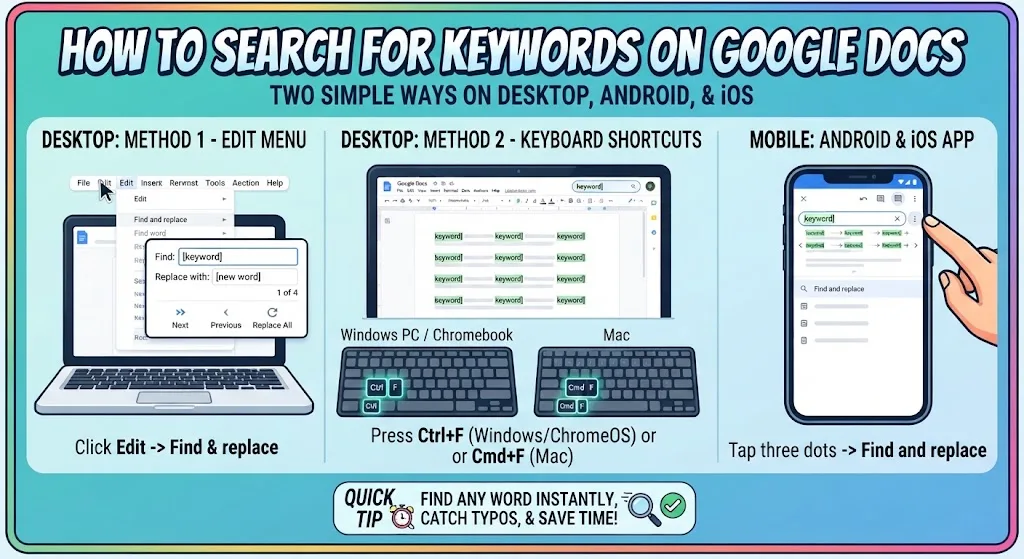
Click Edit in the menu row at the top. A list drops open. Pick Find and replace.
A small box appears. Type your term in the blank beside Find. In our test file we typed “geek”. The word sits in the document four times, so the counter reads 1 of 4.
Click Next to move forward through the matches. Click Previous to step back one.
Close the box with the X. Each match stays highlighted on the page behind it. The same Edit and Format menus hold other tools, including the one you use to build a checklist inside a document.
Method 2: Search for Keywords in Google Docs With Ctrl + F
This route skips the menu bar. Open Google Docs, load your file, then press the keys for your machine.
| Device | Keys to press |
|---|---|
| Windows PC | Ctrl + F |
| Chromebook | Ctrl + F |
| Mac | Cmd + F |
A slim panel opens at the top right of the browser with a blank slot. Type your term there.
We searched for “student” in our sample file. Every match turned green and the page holding it scrolled into view.
If the term appears in more than one spot, click the small up and down arrows. The green highlight moves with each click. Key combos like this one help across ChromeOS too, which is why this list of time-saving Chromebook key combinations is worth a look.
How to Search for Keywords on Google Docs on Android and iPhone
The steps match on both platforms. Tap the Docs icon on your phone and open the file you want to check.
Tap the three stacked dots at the top right of the app. A panel slides open. Choose Find and replace.
A slot appears across the top. Type your term. We tried “coding” here, then tapped the search key on the keypad to run it.
Your term shows up highlighted in green. If it sits in the file several times, every copy gets marked. Use the back and forward arrows beside the slot to hop between results.
Mobile Docs skips a few desktop features. Add-ons such as Grammarly running inside Google Docs only work in the browser version.
Where Each Google Docs Search Method Puts Its Controls
| Route | Where the controls sit | Buttons for moving between matches |
|---|---|---|
| Edit menu | Box floating over the page | Next and Previous |
| Ctrl + F shortcut | Slim panel at the top right | Up and down arrows |
| Phone app | Slot across the top of the screen | Arrows beside the slot |
Pick the menu route when you plan to replace words as well as find them. Pick the shortcut when you only need to locate something fast.
Forgot which combo does what? Your machine can tell you. Here is how to open the shortcut viewer on a Chromebook. The same viewer covers formatting keys, including the ones used to drop text below the baseline as subscript.
Long editing sessions get easier on the eyes once you switch Google Docs to a dark theme. Search behaves the same either way, and the green highlight stays visible.
FAQs
What is the shortcut to search for keywords on Google Docs?
Press Ctrl + F on Windows and ChromeOS, or Cmd + F on a Mac. A search panel opens at the top right of the browser. Type your term to highlight every match.
Can you search and replace words at the same time?
Yes. Open Edit, then Find and replace. Type the old term in the Find field and the new one below it. Click Replace for one match or Replace all.
Why does Ctrl + F not find my word in Google Docs?
Check your spelling and any extra spaces first. Text inside images will not appear in results, because Docs searches typed characters only. Comments and suggestions also sit outside the main search.
Is the search case sensitive in Google Docs?
No, not by default. Open Find and replace, then tick Match case to separate “Docs” from “docs”. The same box holds options for whole words and regular expressions.
How do you search for keywords in the Google Docs mobile app?
Open the file, tap the three dots at the top right, then pick Find and replace. Type your term and tap the search key. Matches turn green across the document.